Quick Start
This guide will help you get up and running quickly with the Honeybee-PH toolkit for Rhino / Grasshopper. The toolkit allows you to add Passive House data to your Honeybee models, then export to WUFI-Passive and PHPP.
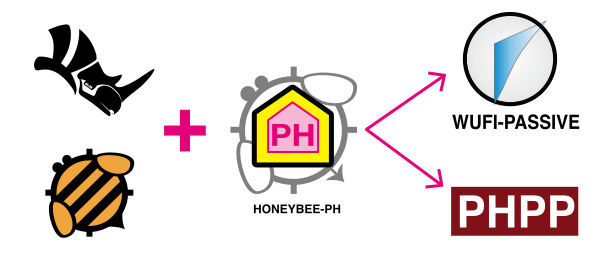
The simplest usage of the Honeybee-PH toolkit is demonstrated below. For detailed tutorials on full Passive House modeling, check out Resources.
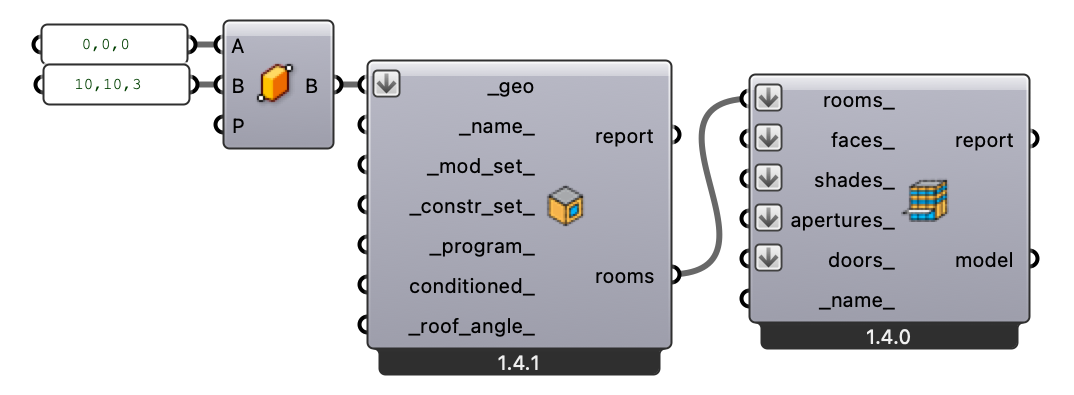
1. Create the HB-Model
We need a valid Honeybee model to work with. For this example, we'll start with a basic box created using normal Grasshopper geometry tools and standard Honeybee components. No Honeybee-PH tools yet.
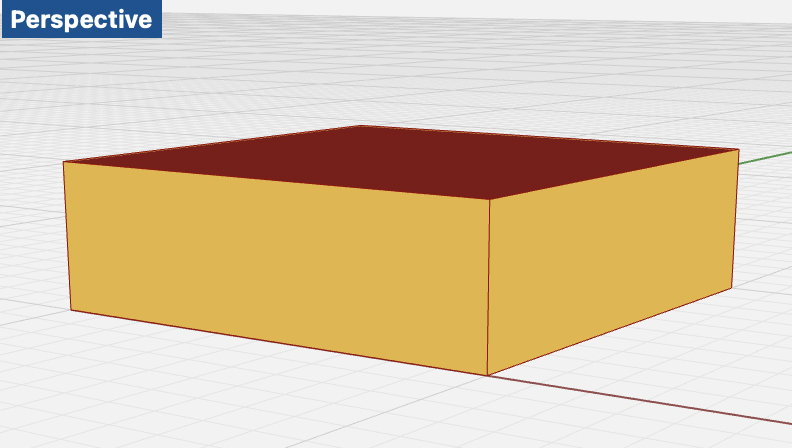
Previewing the Honeybee model at this point shows a simple box with 4 sides, a roof, and a floor:
2. HB-Model → HBJSON
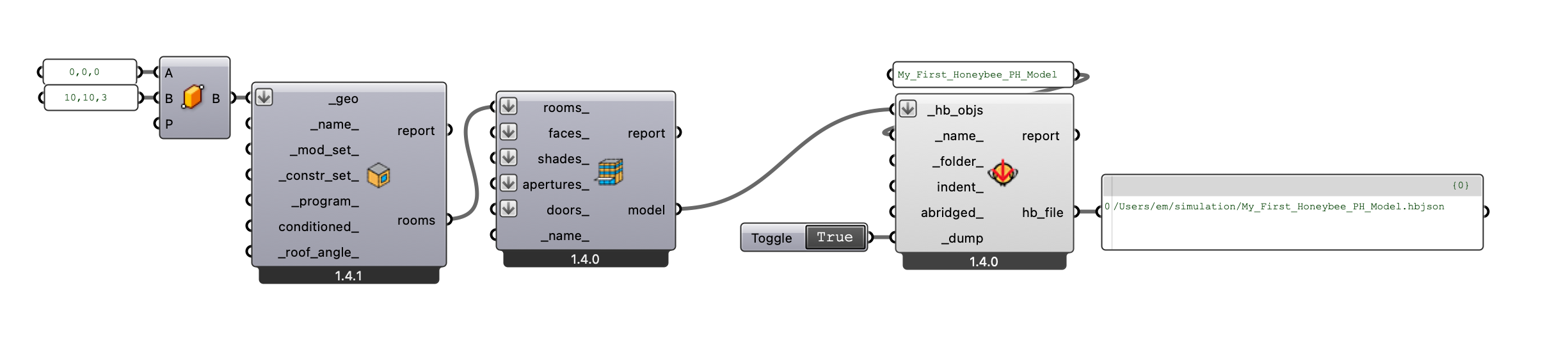
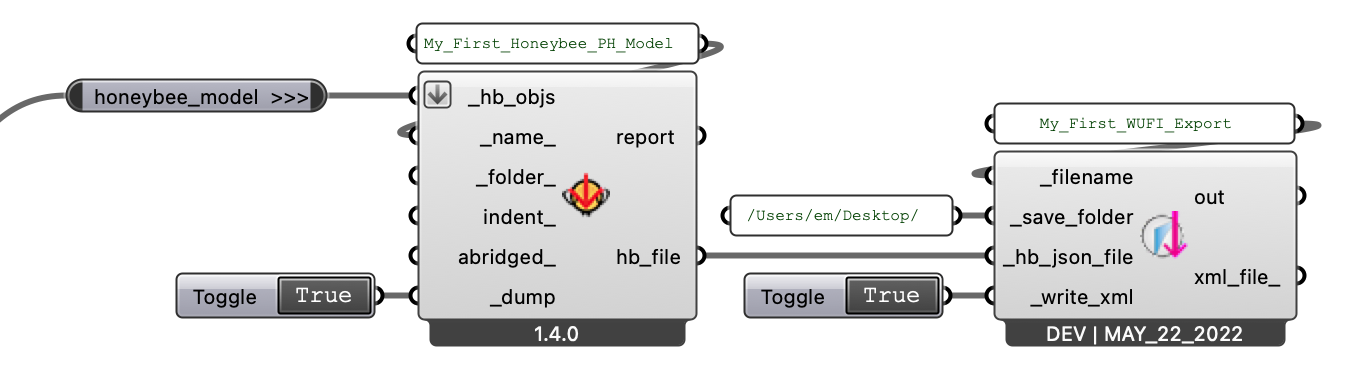
Next, write out the Honeybee Model to an HBJSON file using the standard "HB Dump Objects" Honeybee Component. Still just basic Honeybee — no Honeybee-PH tools yet.
3a. HBJSON → WUFI-Passive
Now it's time to use the new Honeybee-PH tools. To pass our model to WUFI-Passive, use the "HBPH - Write WUFI XML" component. It reads the HBJSON file, rebuilds the model, and converts it to a WUFI-XML document.
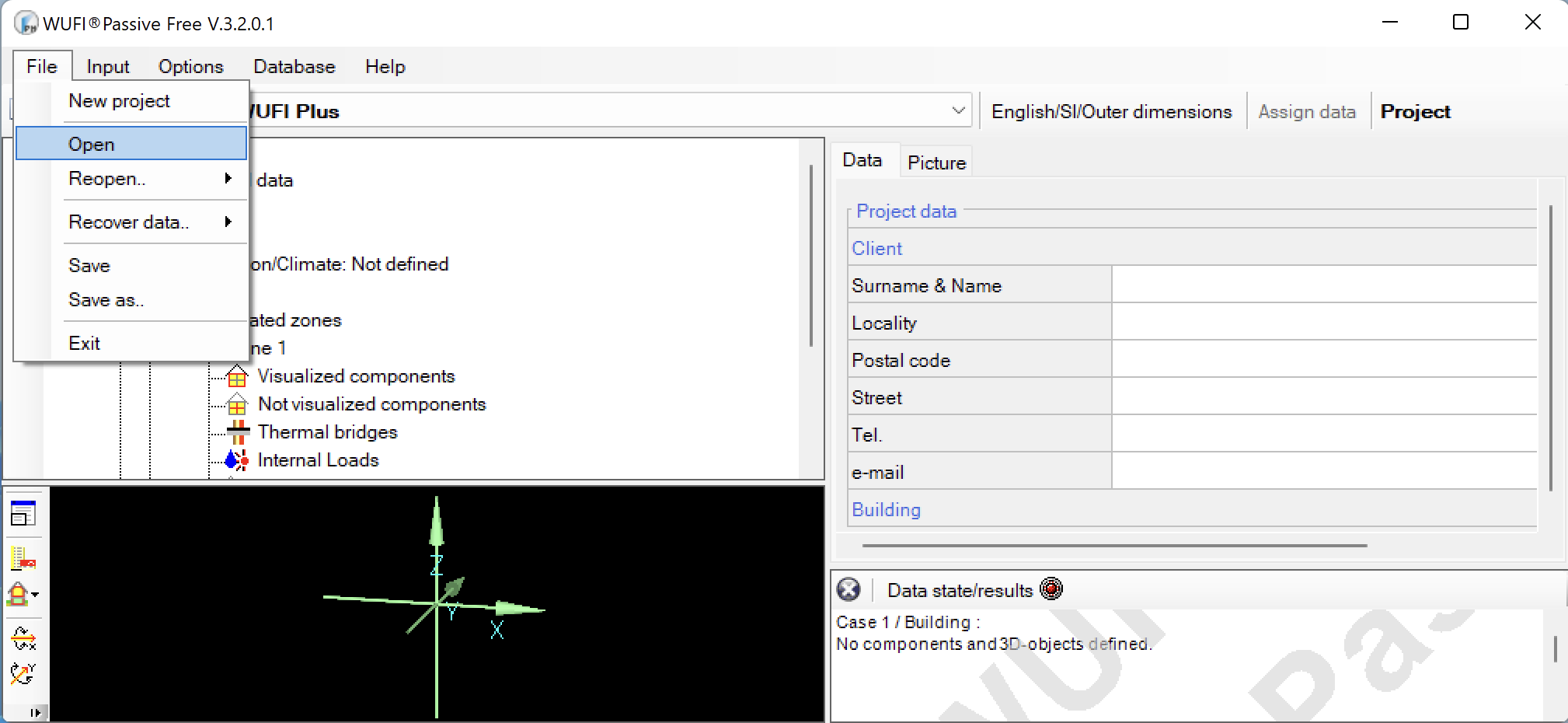
The new WUFI-XML document can be opened in WUFI-Passive. Go to "File / Open..."
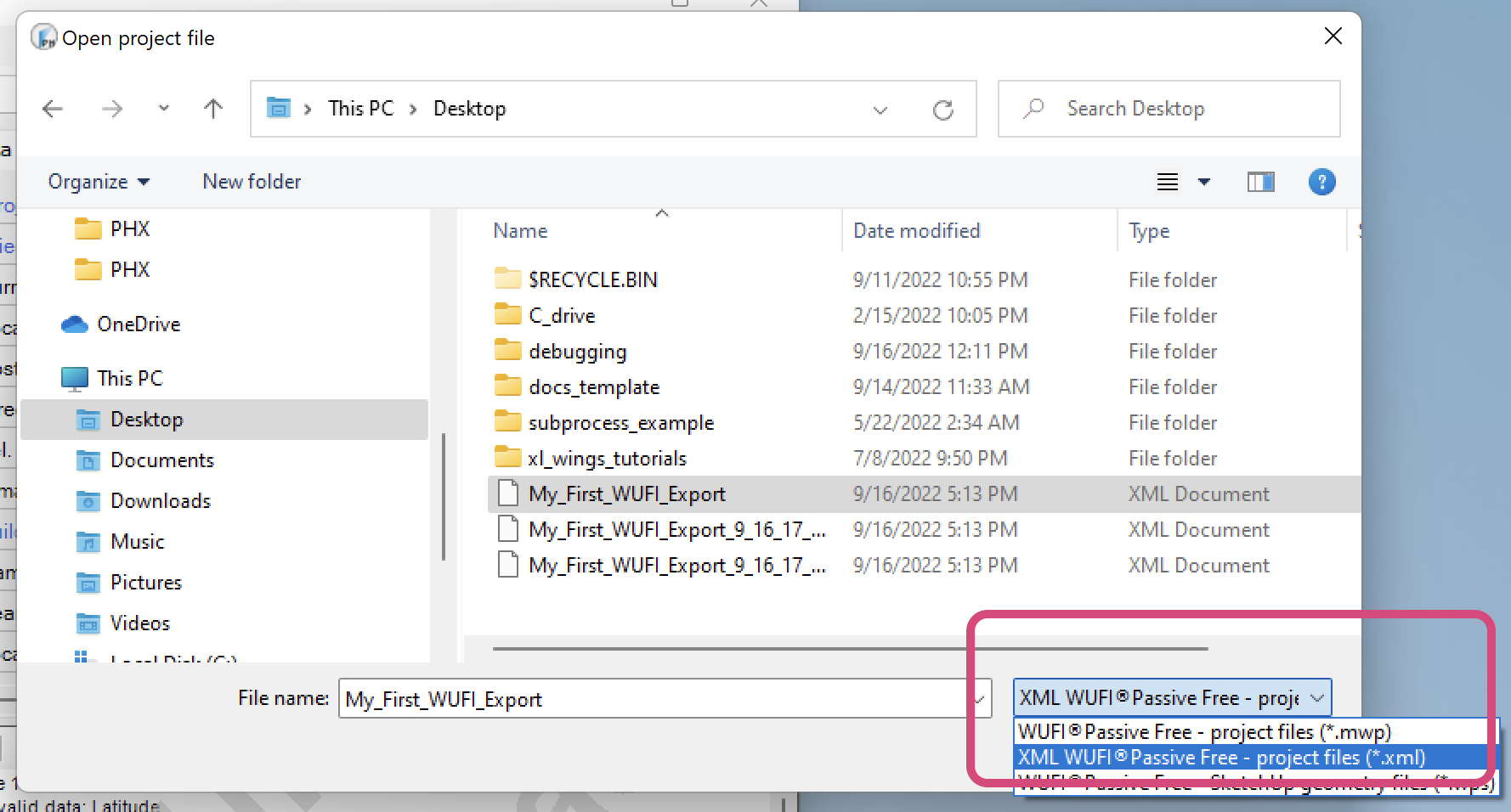
Navigate to where you saved the WUFI-XML file, and select it. If you don't see the file, make sure you're filtering for
*.xml files.
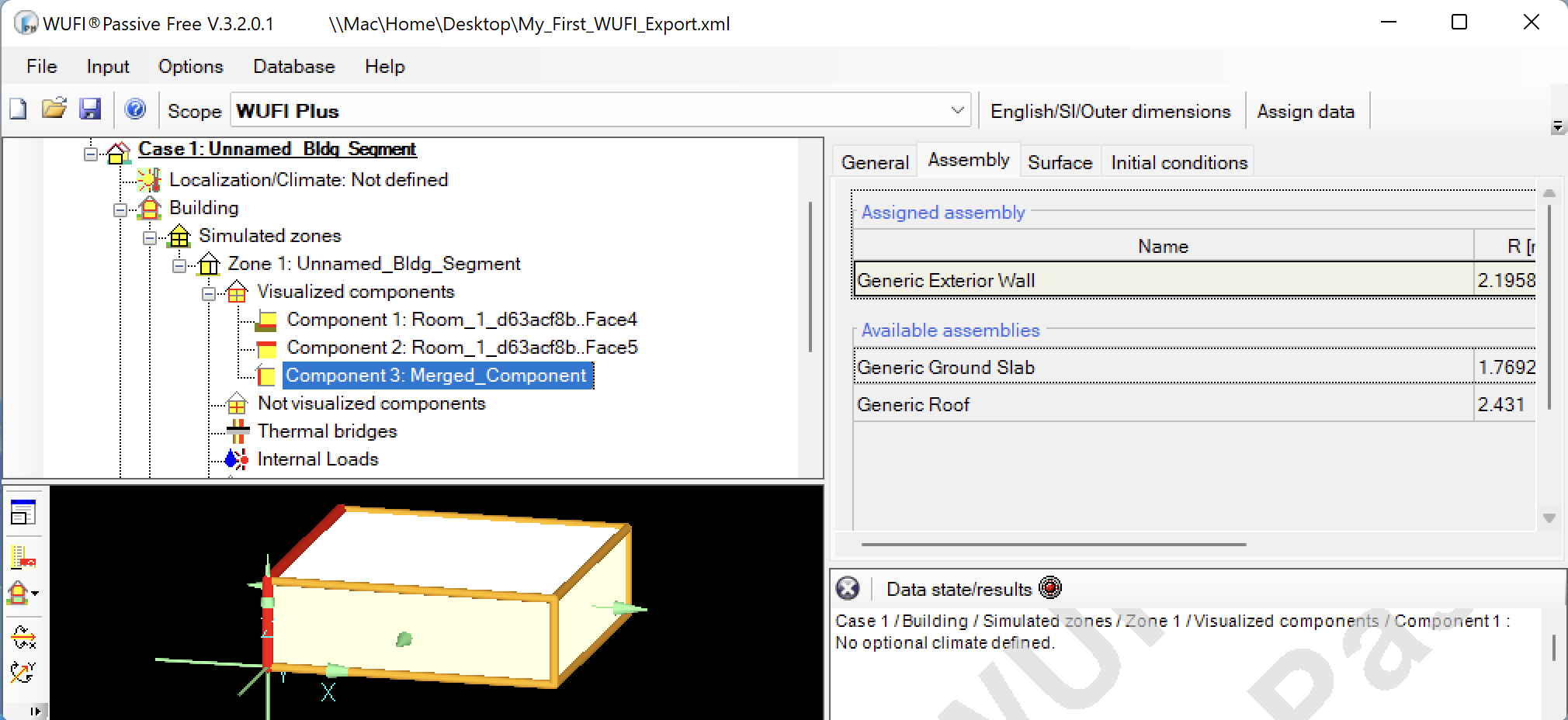
Select the file, click "Open", and your Honeybee model geometry should appear in the WUFI preview panel.
3b. HBJSON → PHPP
To export to the Passive House Planning Package (PHPP), the process is similar. Since PHPP is a Microsoft Excel workbook, we use a different Honeybee-PH tool. The key difference: the target PHPP file must be open at the same time as the Grasshopper file.
Open a valid blank PHPP document alongside the Rhino / Grasshopper window:
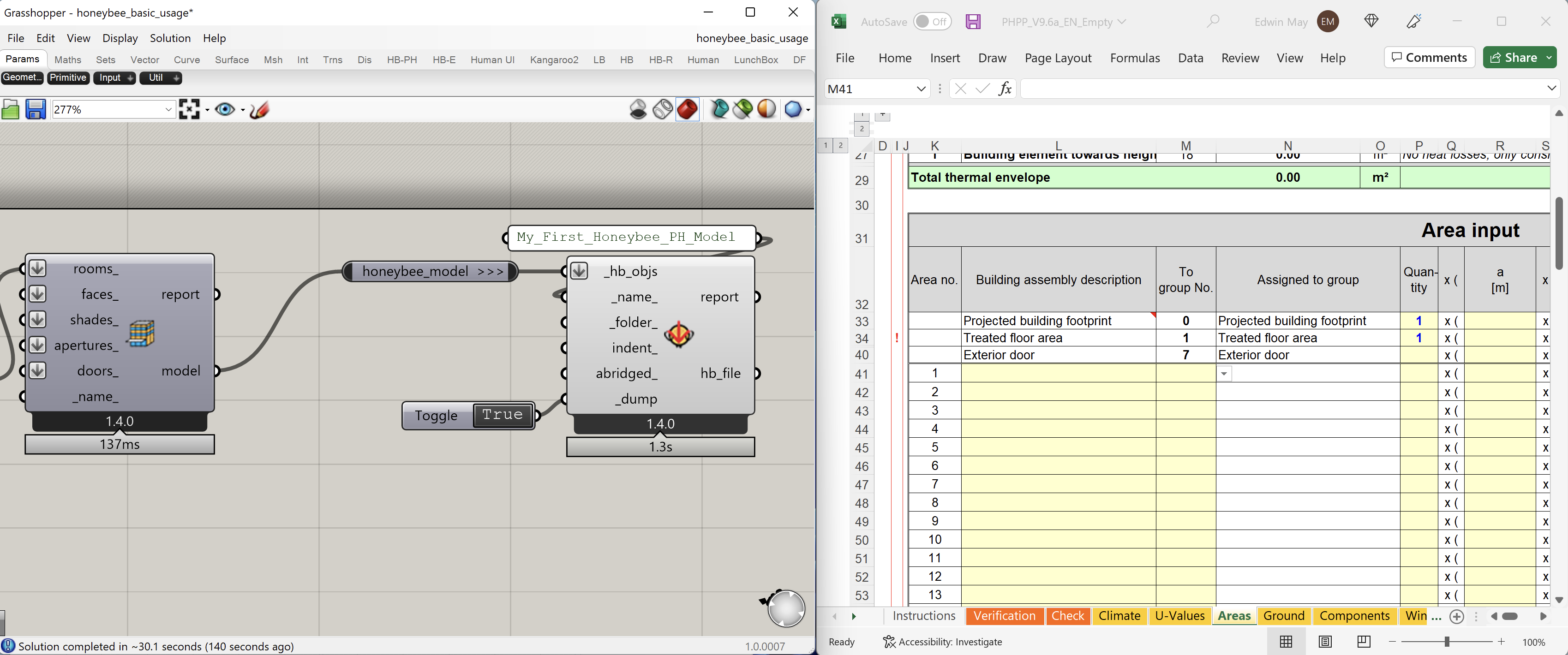
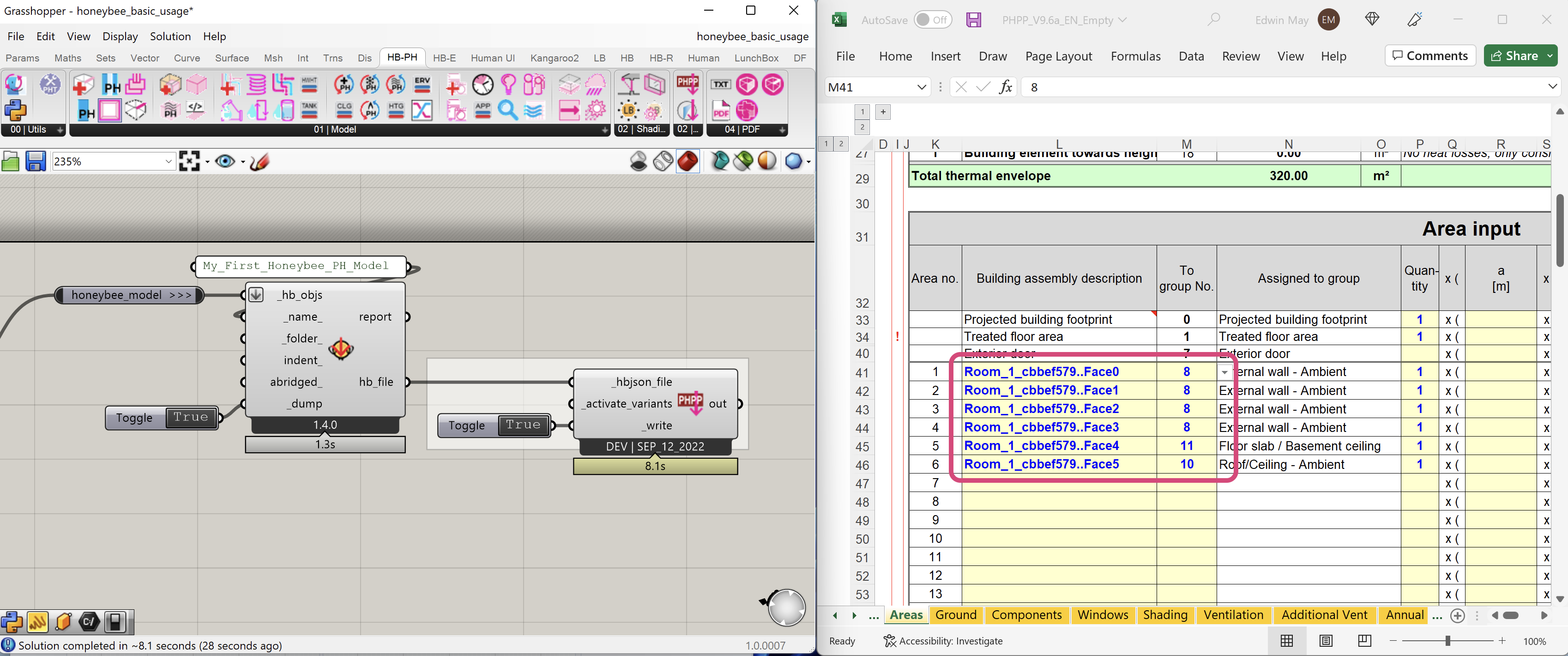
With both files open, use the "HBPH - Write to PHPP" component to write data to the Excel file. This component automatically writes to the active Excel document. If you're having trouble, close any other Excel documents.
Next Steps
This example is the most basic model possible with minimal geometry and attribute assignments. You can use normal Passive House modeling tools to finish your model, or use the many Honeybee-PH components to model windows, mechanical systems, thermal bridges, and more — all directly in Grasshopper.
For detailed component tutorials, check out the Resources section.