Install Honeybee-PH
Honeybee-PH and its Grasshopper toolkit are free and open-source. Download and give it a try.
YouTube Walk-Through
Watch a detailed step-by-step walk-through showing both the LadybugTools installation and the Honeybee-PH installation:
Requirements
Make sure your system has all required software installed and working:
- Rhino-3D v8
- Ladybug-Tools v1.8
- WUFI-Passive
- PHPP v9 or v10
- Windows v10+ or MacOS v13+
Rhino / Grasshopper Installation
Follow the steps below to install the Honeybee-PH toolkit:
- Ensure you have Rhino v8 installed.
- Windows: Use the One-Click Installer for Grasshopper to install Ladybug Tools.
- macOS: Use the Food4Rhino Installer to install Ladybug Tools.
-
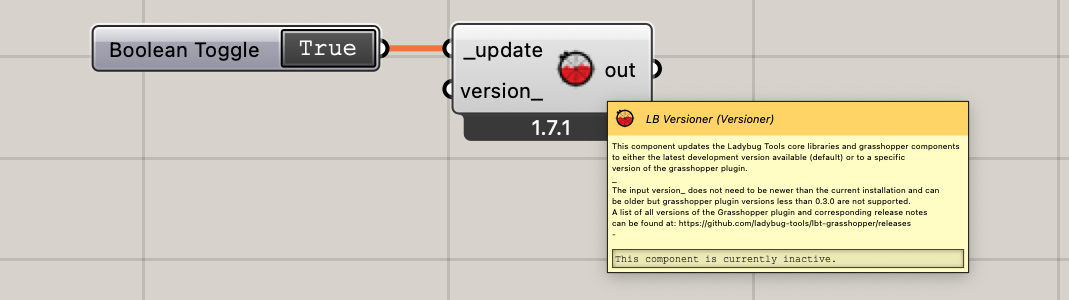
In Grasshopper, use the Ladybug Tools "LB Versioner" component to update to the latest version.
- Download the HBPH Installation File: Download Installer
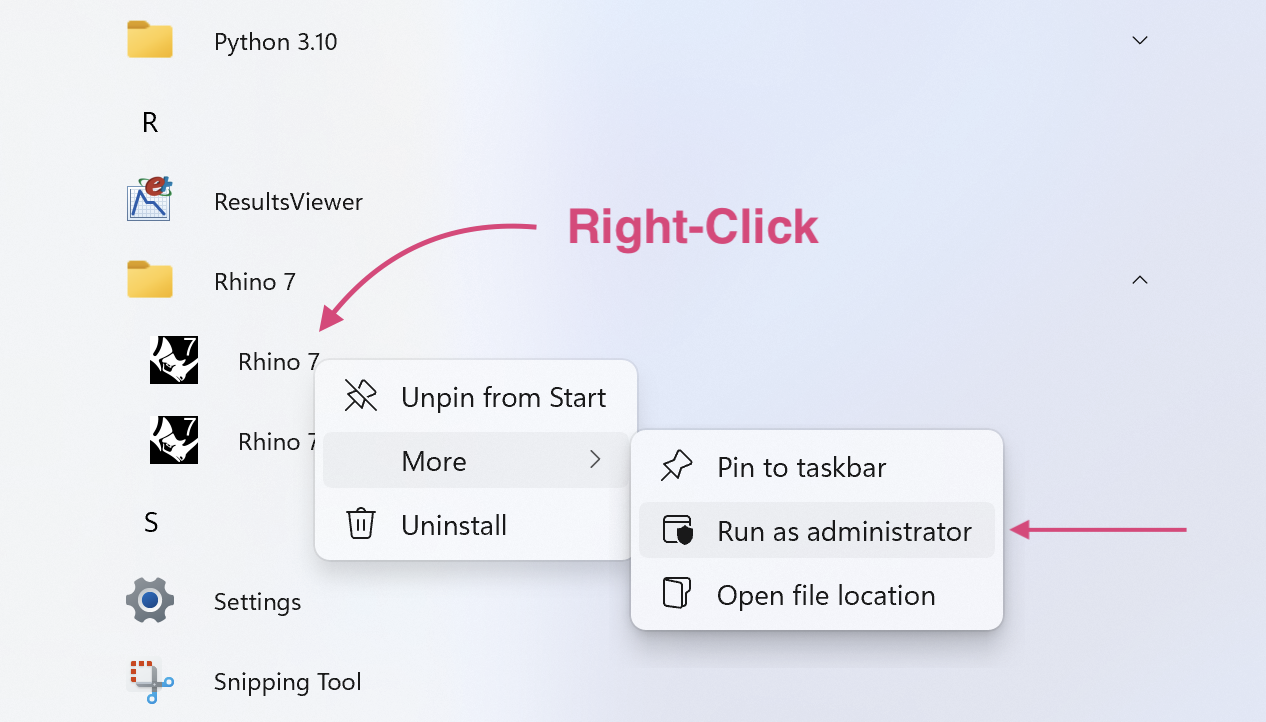
- Open the HBPH Installation File using Rhino / Grasshopper and follow the instructions shown. (Note: On Windows, if you run into permissions trouble, try opening Rhino "as administrator".)
- Restart Rhino and Grasshopper to ensure all new components are properly loaded. Done!
Install Trouble?
If you run into errors during install, check:
- Do you have Rhino v8? HBPH is not compatible with earlier versions.
- On Windows, are you using the Ladybug Tools One-Click Installer for Grasshopper? This is the recommended method for all Windows users.
-
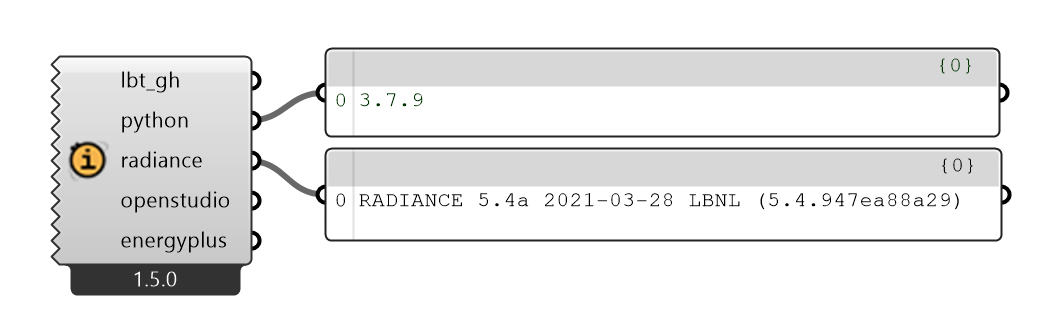
Do you already have Ladybug-Tools and Honeybee installed? Use the Honeybee "HB Check Versions" component to verify your Python, Radiance, and OS installs.
- Do you have Ladybug Tools v1.8 or later? Use "LB Versioner" to update if needed.
-
Are you using Pollination? It may install Ladybug-Tools in a different directory, requiring additional permissions. Try running Rhino "as administrator."
Error on Windows?
In some circumstances you may get an error during installation due to a Python directory issue. Try these steps:
- Using File Explorer, navigate to
C:\Users\--you--\AppData\Roaming\ -
Look for a directory named
Pythonin there.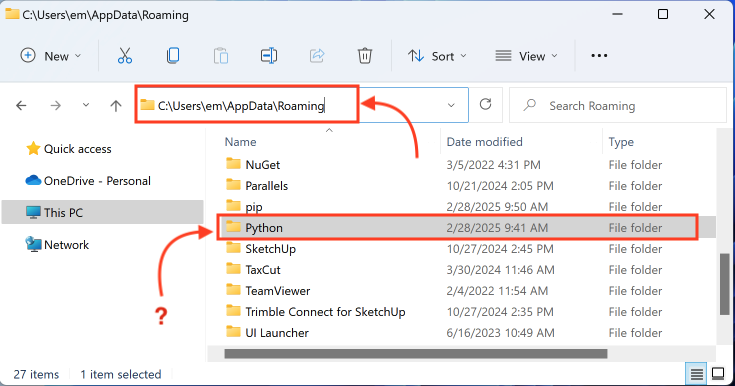
- If you have a directory named
Python, delete it — it isn't supposed to be there. - Now try running the Grasshopper Installer one more time.
Manual Installation
In some cases, users cannot use the automatic installer — for instance if Rhino cannot be run in admin mode. Manual installation is possible but not recommended for most users.
Step 1: Locate your ladybug_tools folder
For most users, this will be:
but for some users it may be:
Step 2: Run PowerShell
Open PowerShell from the Windows Start menu.
Step 3: pip install the required libraries
Run one of the following commands depending on where your ladybug_tools folder is:
OR
Step 4: Verify installation
After installation completes, look in your ladybug_tools\python\Lib\site-packages\ folder for directories named honeybee_ph, PHX, and ph_units. If present, installation succeeded.
Step 5: Download Grasshopper tools
Download the latest Honeybee-PH Grasshopper Components:
Grasshopper Tools (zip)
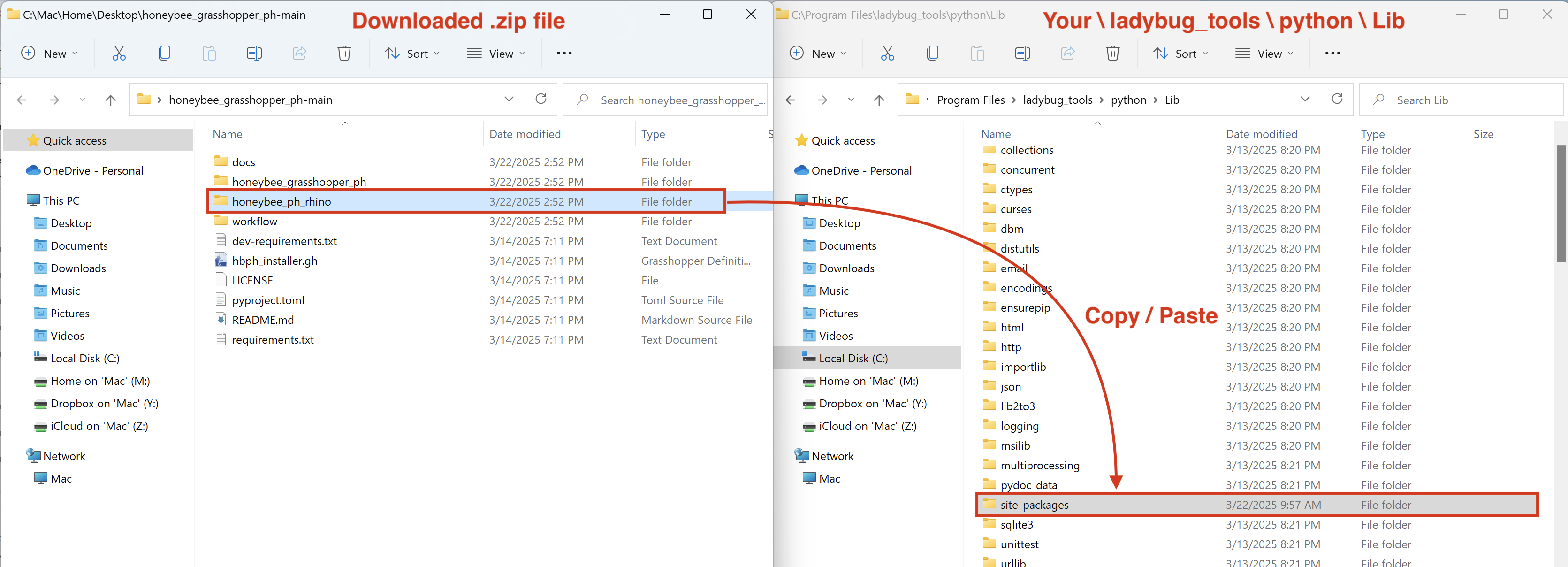
Step 6: Copy honeybee_ph_rhino
Unzip the download and copy the honeybee_ph_rhino folder into your ladybug_tools\python\lib\site-packages\ folder.
Step 7: Copy user objects
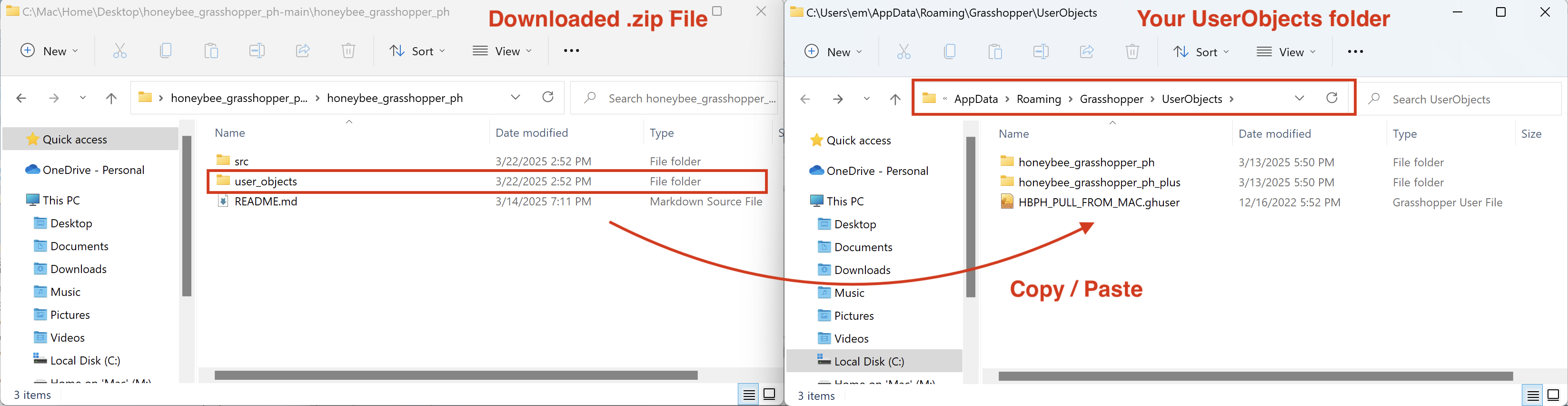
Copy the honeybee_grasshopper_ph\user_objects folder into your Grasshopper UserObjects folder:
Step 8: Download Component-IO
Download the Grasshopper Component-IO library:
Grasshopper Component-IO (zip)
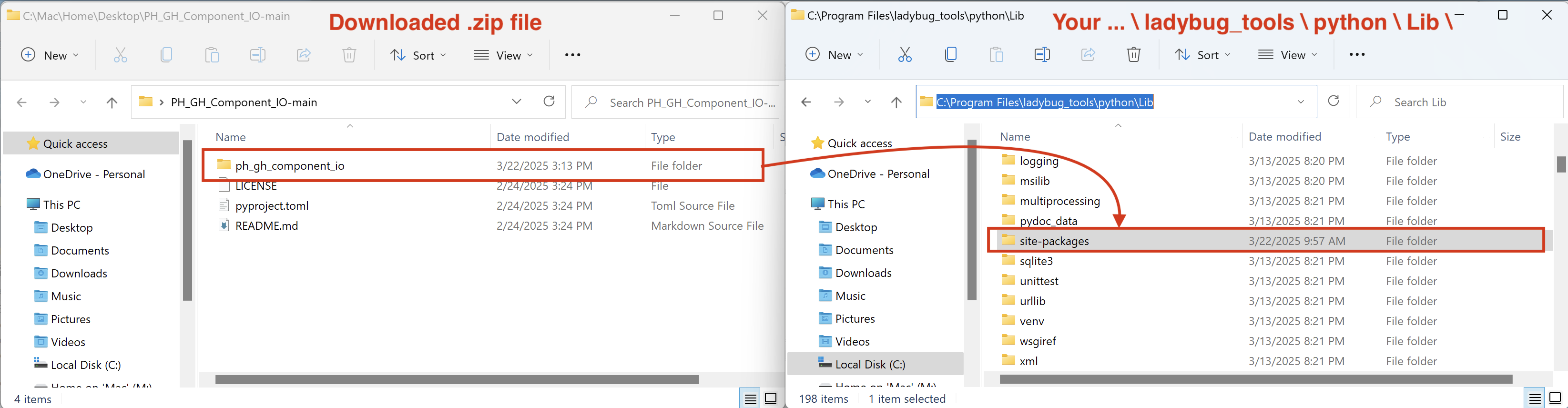
Step 9: Copy ph_gh_component_io
Copy the ph_gh_component_io folder into your ladybug_tools\python\lib\site-packages\ folder.
This completes the manual installation. You should now be able to open Rhino and Grasshopper and use the Honeybee-PH components.